

 (647) 478-5858
 (728) 500-4818
A free WordPress migration is genuinely possible with nothing but an administrator login on the old site and an empty WordPress install on the new host. No SSH. No paid unlimited extension. The plugins that make it work are all in the WordPress repository, and the whole job comes down to five steps: back up, build the destination, move the files and database, test on a temporary URL, then point the A record. We do this often enough as part of our web design and development work that the pattern is boringly consistent.
What follows is the WordPress migration process we actually use, including the parts nobody warns you about. The plugin step is the easy half. The half that ruins weekends is everything around it: serialized data, email that quietly stops sending, and a DNS record that half the internet is still caching.
In this article
- What you actually need before you start
- The free plugins that do the heavy lifting
- The five steps of a WordPress migration
- Moving to a cPanel host
- Moving to WP Engine
- Moving to Cloudways
- Changing the A record without dropping traffic
- What usually breaks, and how to catch it
- Frequently asked questions
What you actually need before you start
Four things, and only one of them is technical.
- Administrator access on the current site. WordPress migration plugins install from the Plugins screen, so this is the access that matters. You do not need cPanel or SFTP on the old host.
- An empty WordPress install on the new host. Fresh, no demo content, no starter theme. Most hosts spin one up in a couple of minutes.
- Login to wherever the domain’s DNS lives. That is often the registrar, sometimes Cloudflare, occasionally the old host. Find out which before migration day, not during it.
- A backup on your own machine. A backup that only exists on the server you are about to abandon is not a backup.
Two numbers are worth writing down first. The total size of the site, which is your uploads folder plus the database, decides whether a one-click plugin will cope or whether you are doing this by hand. And the current PHP major version, which you can read in Tools then Site Health. Match it on the new server for the move itself. Upgrading PHP at the same time as changing hosts means that when something breaks, you have no idea which change caused it.

The free plugins that do the heavy lifting
No single plugin wins every WordPress migration. There is a best one for your site’s size and your new host’s rules, and the gap between them is wider than the marketing suggests.
| Free plugin | What it moves | Admin login enough? | Best for |
|---|---|---|---|
| Migrate Guru | Files and database, server to server | Usually yes, using a migration key | Big sites and anything you would rather not download |
| WPvivid Backup | Files and database, site to site | Yes, plugin on both ends | When you control both sites and want one dashboard |
| All-in-One WP Migration | Everything, into one archive file | Export yes, import depends on server limits | Smaller sites, and keeping a portable copy |
| WP Migrate Lite | Database, with safe URL find and replace | Yes to export, import is manual | Database only moves and domain changes |
| Duplicator | Archive plus an installer script | No, you upload the installer yourself | Hosts where you do have file access |
| Your new host’s own plugin | Files and database, straight into their platform | Yes, plus destination details they give you | Cloudways, WP Engine and similar managed hosts |
Migrate Guru on the WordPress plugin directory is the closest thing to a default answer. It pushes the site server to server rather than through your laptop, so nothing has to be downloaded and re-uploaded, and its listing states it handles sites up to 200 GB and includes search and replace that understands serialized data. The listing also notes a cap of five migrations per user per month, which is fine for a one-off move and worth knowing if you are shifting a batch of sites.
All-in-One WP Migration is the one most people meet first, and the one most people get stung by. Exporting your whole site to a single file is free and always has been. Importing that file on the other end runs into whatever upload ceiling the destination server enforces, and lifting that ceiling is where the paid extension comes in. On a small brochure site you will never notice. On a media-heavy site you will notice immediately.
WPvivid Backup and Restore takes a different route: install it on both sites, pair them, and push from one dashboard to the other. Because both ends are WordPress screens you already have logins for, it fits the admin-only constraint neatly. WP Migrate Lite is the specialist for the database half, and it is the tool to reach for when the domain is changing, because it rewrites URLs without corrupting serialized values.
Save your money
Before you pay to lift an import limit, check whether your new host publishes its own migration WordPress migration plugin. Cloudways and WP Engine both do, both are free, and both are built to land a site inside their own platform. Reaching for a paid extension to force a generic plugin past a limit the destination host would have handled for nothing is the most common way people spend money on a WordPress migration they did not need to spend.
The five steps of a WordPress migration
This is general guidance, not a tested deployment plan for your particular site. Hosting setups, plugin behaviour and DNS configurations differ between providers, and any move touches live data. Take a backup you keep yourself, read your host’s own documentation, and test on a copy before you change anything that customers can see. Gilmedia is not liable for data loss or downtime from changes made without a tested backup.
- Back up both sides. Full copy of files and database from the old site, downloaded to your machine. If the new host already has anything on it, back that up too.
- Build the empty destination. Clean WordPress, matching PHP major version, nothing else installed. Note the temporary URL or preview address the host gives you.
- Move the files and the database. Install your chosen plugin on the old site, point it at the new one, and let it finish. Do not close the tab, and do not publish anything on the old site while it runs.
- Test on the new server while DNS still points at the old one. This is the step people skip, and it is the only one that is free to redo.
- Point the A record, then keep watching. Lower the TTL beforehand, sort the certificate, switch the record, and leave the old hosting account alive.
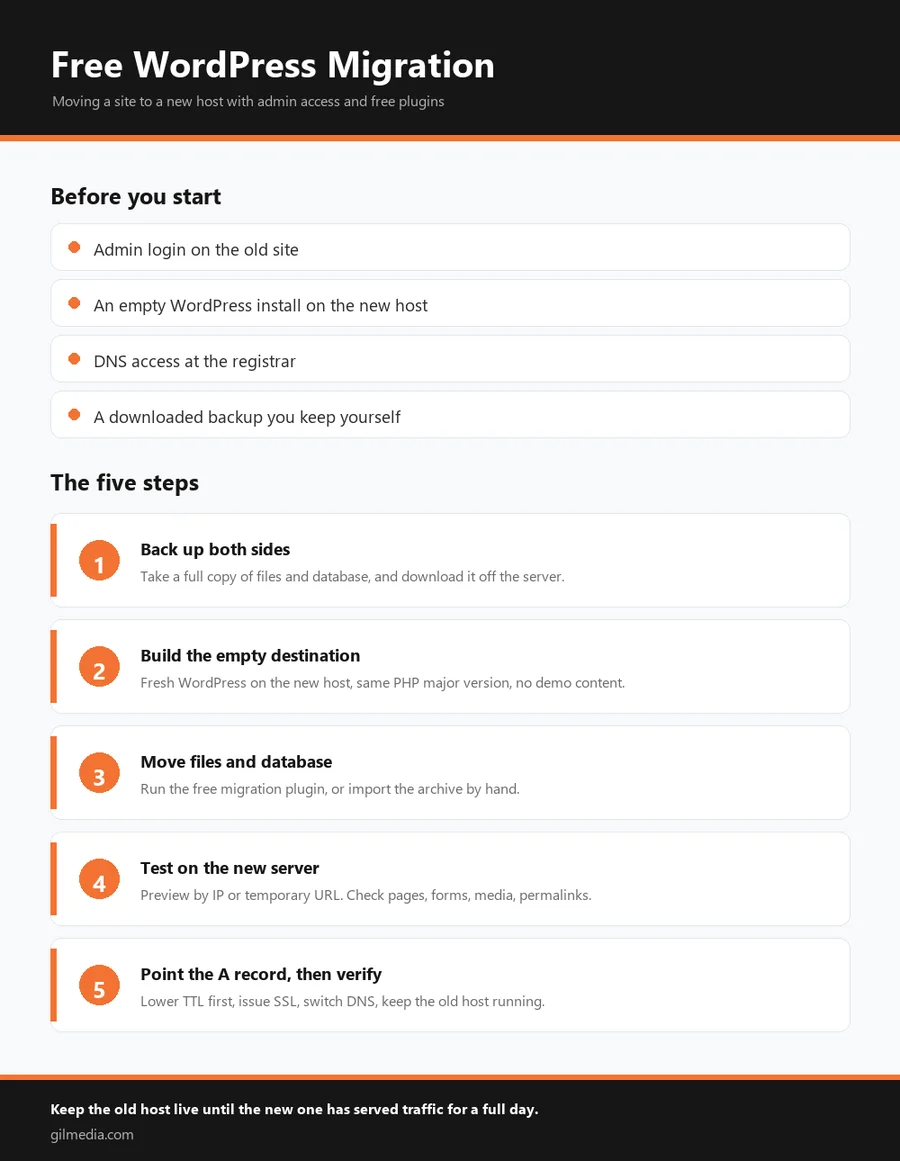
Step four deserves more than one line. Load the homepage, a blog post, a category archive and a URL that should 404. Re-save your permalinks, then click every menu item. Submit each contact form and confirm the email actually lands, not that the form said thank you. Open the media library and check the thumbnails render. If it is a store or a membership site, place a real test order and cancel it. Fifteen minutes here is worth more than any amount of care taken earlier.
Pro tip
If your new host does not hand you a usable preview URL, edit the hosts file on your own computer to resolve the domain to the new server’s IP. Your machine then sees the new site at the real domain while the rest of the world carries on hitting the old one. It is the closest you get to a dress rehearsal, and it catches hardcoded URLs that a temporary domain would hide.
Moving to a cPanel host
cPanel is the most forgiving destination for a WordPress migration, because you have both routes available. Create the destination site through Softaculous or WP Toolkit, whichever your host ships, and let it build the database for you. Then run any of the plugins above and you are done.
If the plugin route stalls, and on cheaper shared plans it sometimes does, cPanel gives you the manual fallback. File Manager or SFTP for wp-content, phpMyAdmin to import the database export, and a quick edit to wp-config.php with the new database name, user and password. The WordPress documentation on moving a site covers this path in detail and is worth reading before you start rather than at two in the morning.
Red flag: never find and replace a database in a text editor
WordPress stores widget settings, theme options and page builder layouts as serialized data, and each string in it carries its own character count. Swap a domain for a longer or shorter one with a plain text replace and those counts no longer match, so WordPress silently discards the whole value. The usual symptom is a homepage that loads with all its content missing. Use a tool built for the job, WP Migrate Lite or the search and replace inside your migration plugin, and the counts are rewritten correctly.
Moving to WP Engine
WP Engine is stricter than a standard cPanel account, and that changes the approach. The platform write-protects parts of wp-content, which is exactly the sort of thing a generic WordPress migration plugin expects to be able to write into. We have hit this on client sites: a normal-looking install finishes and reports partial success, because the directory it needed was never writable.
Use their own Automated Migration plugin instead. It is free, but it does not come from the plugin directory. You generate a migration destination inside the WP Engine User Portal first, which gives you an SFTP-style host, user and password for the target environment, then download the plugin, install it on the old site through Plugins then Add New then Upload, and paste those details in. Everything is still driven from the old site’s dashboard, so the admin-only rule holds. Check WP Engine’s own support documentation for the current steps, because managed hosts change their tooling more often than the plugin directory does.
Moving to Cloudways
Cloudways works the same way in spirit. Their Cloudways WordPress Migrator plugin is free and built by the same team behind Migrate Guru, so the mechanics will feel familiar. Create the destination application on your Cloudways server first, then feed the plugin the destination SFTP details and an email address for progress notifications.
One limitation is stated plainly on the plugin listing and is worth repeating: it only migrates into Cloudways. It is not a general-purpose tool, and it will not help you move away later. The other thing to watch is a non-standard install layout. Bedrock and similar structures do not survive it cleanly, and multisite usually needs manual tidying afterwards.
Changing the A record without dropping traffic
The A record is the line that maps your domain to a server’s IP address. Changing it is a five second edit. Everything that makes it safe happens before and after.
- Lower the TTL a day ahead. Drop it to a few minutes at least twenty four hours before the move so resolvers pick up the change quickly when you make it.
- Freeze the old site. Anything published, ordered or submitted after your copy was taken does not exist on the new server.
- Sort the certificate first if your host allows it. Many hosts can issue a certificate before DNS points at them; some cannot and will issue it minutes after cutover. Know which yours is, so a browser warning does not surprise you.
- Change both records. The bare domain and the www version. One is often an A record and the other a CNAME, and forgetting the second is a classic.
- Keep the old host paid and running. Days, not hours. It is your rollback, and while DNS settles some visitors are still being served by it.
Because the URLs are not changing, this is a straightforward server move as far as search engines are concerned. Google’s guidance on site moves without URL changes is the reference here, and the short version is that a clean cutover with no downtime and no URL changes should pass without drama. Rankings tend to wobble when a WordPress migration also changes URLs, breaks redirects, or leaves the new site blocking crawlers. If organic traffic is a meaningful part of your business, it is worth having someone watching the technical side of your search visibility across the cutover week.
What usually breaks, and how to catch it
Every WordPress migration seems to find the same short list of casualties. These are the five we check for by default.
Email stops sending
Contact forms submit happily and the message never arrives. New server, new sending IP, new reputation, and often a different mail configuration entirely. Send a real test to an address you can check, from every form on the site, and confirm your SPF record still lists whatever now sends your mail.
Permalinks return 404 on everything but the homepage
The rewrite rules did not come across. Settings, then Permalinks, then Save Changes without altering anything. That regenerates them. On Apache, confirm the .htaccess file actually made the trip, because file transfers skip dotfiles more often than you would expect.
The site is invisible to Google
Staging environments are usually set to discourage search engines, and that setting travels with the database. Check Settings, then Reading, and make sure the discourage box is unticked once you are live. This one is quiet and expensive.
Half the images fail to load
Usually a mixed content problem: the database still holds http URLs while the new site serves https. A proper search and replace across the database fixes it. Sometimes it is simply an incomplete uploads transfer, so compare the folder sizes on both ends before assuming.
Scheduled tasks stop firing
Backups, order emails, publishing queues. WP-Cron depends on traffic, and a real cron job set up on the old server did not migrate with the files. Recreate it on the new host.
Download the free quick guide
Two printable pages covering the whole move, from the pre-flight checks through to the days after the A record changes.
Frequently asked questions
Most WordPress migrations are uneventful when the preparation is done and miserable when it is not. If yours involves a store, a membership site, or years of content you cannot afford to lose, the value of hiring someone is not the file transfer, it is having a person who has already met every failure mode on this page. Gilmedia builds, moves and maintains WordPress sites for businesses across the Greater Toronto Area and Florida. If you are mid-move and something has gone sideways, or you would rather not do it at all, talk to our team about your move and we will tell you straight what it involves.